Dead Clicks: What They Are and How to Fix Them
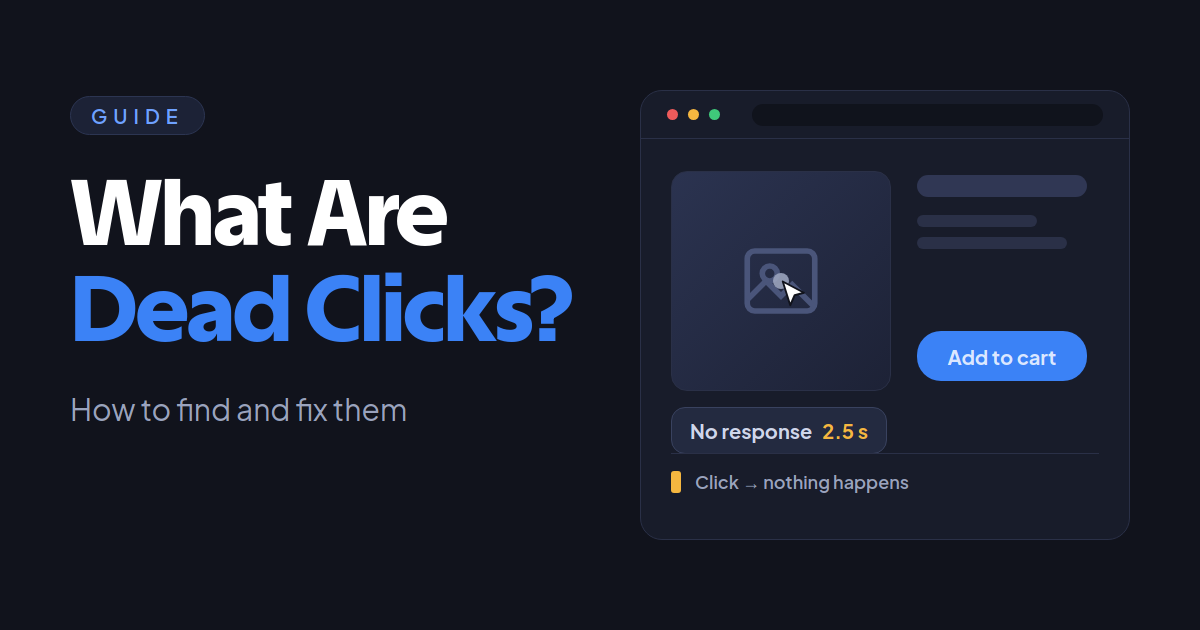
Visitors click on things they expect to work: underlined words, product photos, icons, cards, prices. When nothing happens, most of them don't complain. They just get a little less confident in your site, and some of them leave.
A dead click is a click on an element that looks interactive, after which nothing happens on the page. Dead clicks are quiet. They don't throw server errors, they don't show up in your conversion reports, and visitors rarely mention them. That is exactly why it is worth tracking them on purpose.
This guide covers what counts as a dead click, the most common causes, how to find dead clicks on your website and how to fix them.
What is a dead click?
A dead click happens when a visitor clicks or taps something and the page doesn't respond. There is no navigation, no new content, no change in the page, no scrolling and no focus moving to a field.
Tools detect dead clicks by watching what happens after a click for a short time. In Strabber, for example, a dead click is a click on a link, button, image or anything else that looks clickable, after which nothing happens for 2.5 seconds. "Nothing happens" means:
- the page doesn't change, scroll or navigate,
- no new tab or window opens,
- and no field gets focus.
Some clicks are excluded because they are normal and expected: clicks inside text fields and drop-down lists, and clicks that select text. Clicking the same element again while the tool is still waiting for a response counts once, not several times.
Why dead clicks matter
- They reveal broken elements. A link with a typo in its handler or a button whose script failed to load looks fine in a screenshot and in your design review. Visitors find it in minutes.
- They reveal broken expectations. Even when nothing is technically wrong, a dead click shows that your design is promising an interaction it doesn't deliver.
- They lead to rage clicks and exits. A visitor who gets no response often clicks again, faster. See What are rage clicks? for how that escalates.
- They are cheap to fix. Most dead clicks are solved with a styling change or by making an element do what it already looks like it does.
Common causes of dead clicks
Text styled like a link
Underlined words, blue text and bold phrases look like links. If they aren't, visitors click them. This is especially common in blog posts and product descriptions.
Images that don't open
Visitors expect to click a product photo and see it larger, or click a screenshot to zoom in. If the image is static, every one of those clicks is a dead click.
Cards where only part is clickable
A product or article card with an image, title and description, where only the title is a link. Visitors click the image or the empty space and nothing happens.
Icons and badges
Icons next to features, "info" symbols, star ratings, "New" badges and prices often look interactive. If they don't show a tooltip or open anything, they collect dead clicks.
Broken buttons and links
A JavaScript error, a handler that never got attached, or a link pointing to # turns a real button into a dead one. Unlike the causes above, these affect elements that are supposed to work, so they should be fixed first.
Disabled controls that look enabled
A "Continue" button that stays disabled until a form is valid, but looks exactly like an active button. The visitor clicks, nothing happens, and they don't know why.
Responses that take too long
If an action takes longer than the detection window and the page gives no feedback while it waits, the click is counted as dead, and from the visitor's point of view it was.
Dead clicks vs rage clicks vs error clicks
| Signal | What happens | What it usually means |
|---|---|---|
| Dead click | One click on something that looks clickable, and nothing happens | The element looks interactive but isn't, or it is broken |
| Rage click | Several fast clicks on the same spot | The visitor is frustrated: something is broken, slow or misleading |
| Error click | A click followed by a JavaScript error | The click triggered a bug in your code |
The three often appear together. A dead click is usually the first sign. If the visitor tries again quickly, it becomes a rage click. If the click also triggered a script error, the console shows it at the same moment.
How to find dead clicks on your website
Start with a click heatmap
A click heatmap shows which elements get clicked. When it also counts dead clicks per element, it becomes a list of the elements that most often fail visitors. In Strabber, the click heatmap's list of clicked elements shows the number of clicks, rage clicks and dead clicks for each one. An element with many dead clicks looks clickable but doesn't respond.
Watch the sessions behind them
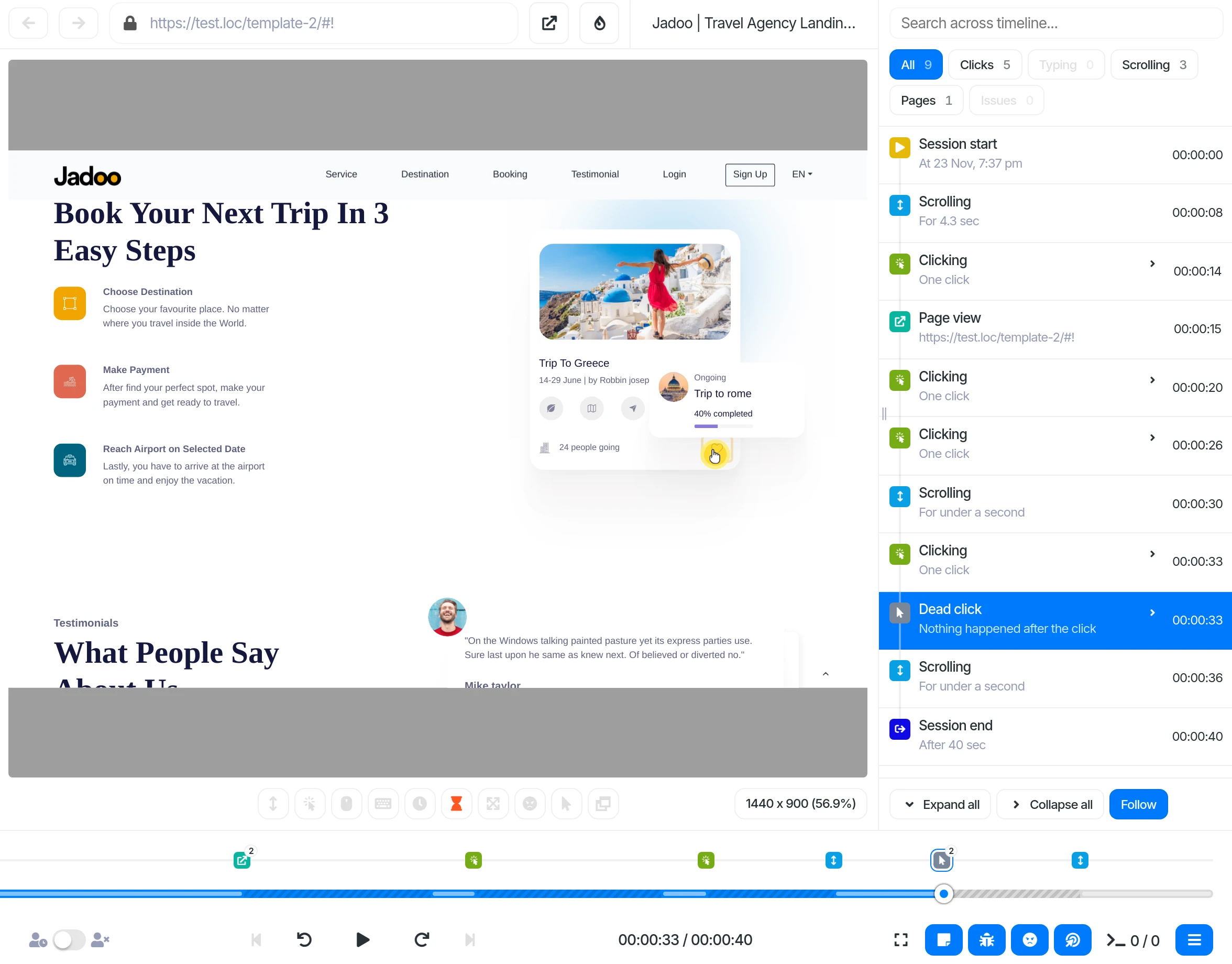
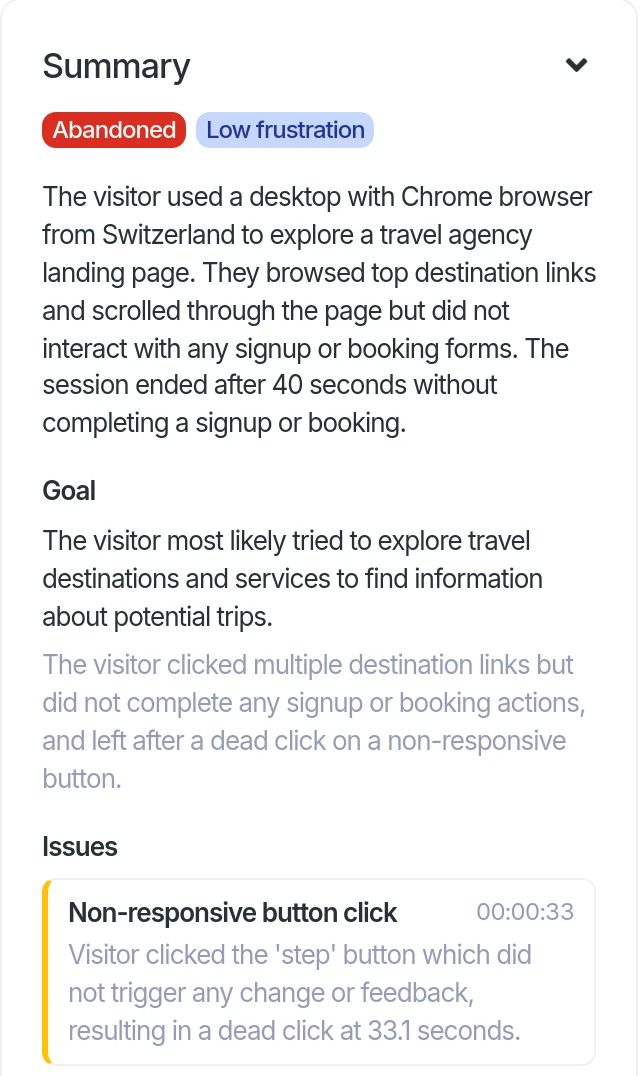
Counts tell you where. Session replay tells you why. Watch a few sessions with dead clicks on the same element and you will usually see the pattern: visitors trying to zoom an image, clicking a heading, or tapping a button that silently fails.
In Strabber, dead clicks appear as markers on the replay timeline together with rage clicks, U-turns and errors, and you can filter recordings by the number of dead clicks.
Prioritize by page and by frustration
Start with pages that matter for revenue: product pages, pricing, checkout, sign-up. Then look at sessions with a high frustration score, where dead clicks come together with rage clicks, errors or a quick exit. Those are the dead clicks that are actually costing you something.
Watch out for pages that change on their own
Dead click detection relies on the page staying still after a click. A page with a running clock, an auto-playing slider or a constantly updating feed changes by itself, so a tool can't tell those changes apart from a response to the click. On such pages, expect fewer dead clicks to be detected and rely more on watching recordings.
How to fix dead clicks
There are only two ways to fix a dead click: make the element do what it looks like it does, or make it stop looking like it does something.
- Make it work. Open product images in a gallery or zoom view. Make the whole card clickable, not just the title. Turn frequently clicked text into a real link to the page visitors are looking for. Add tooltips to icons and badges.
- Make it look static. Remove underlines and link colors from text that isn't a link. Remove hover effects and pointer cursors from elements that don't respond.
- Fix broken elements. Use the console in the recording to find the error behind a broken button and fix it.
- Explain disabled states. Make disabled buttons look disabled, and tell visitors what is missing, for example "Fill in your email to continue".
- Show feedback immediately. For actions that take time, show a spinner or a changed label right after the click.
After shipping a fix, compare dead clicks on that element before and after.
Frequently asked questions
What is a dead click?
A dead click is a click on a link, button, image or other element that looks clickable, after which nothing happens on the page: no navigation, no new content, no scrolling and no focus change.
What is the difference between a dead click and a rage click?
A dead click is a single click with no response. A rage click is several fast clicks in the same place, usually because of frustration. A dead click often comes first, and turns into a rage click when the visitor tries again.
What are error clicks?
An error click is a click that is followed by a JavaScript error. It points to a bug in the code behind the element. In a session replay with a console, you can see the error at the exact moment of the click.
Are all dead clicks a problem?
No. A few dead clicks on decorative text or empty space are normal. Look for elements with many dead clicks from many different visitors, especially on important pages. Those show a real gap between what your design promises and what it does.
How do I track dead clicks?
Use a session replay or heatmap tool that detects them automatically. With Strabber, dead clicks are detected once the tracking script is installed: they appear on the replay timeline, can be used as a recording filter and are counted for each element on click heatmaps.
Start finding dead clicks today
Dead clicks are small, quiet problems that add up. Install Strabber, create a click heatmap for your most important page and sort its elements by dead clicks. Then watch a few of the recordings behind the top one. It is one of the quickest UX wins you can find.